


Photo by the author
# Entry
BitNet b1.58, developed by Microsoft researchers, is a native low-bit language model. It is trained from scratch using ternary weights with values (-1), (0) and (+1). Rather than shrinking a huge, pre-trained model, BitNet was designed from the outset to perform efficiently at very low precision. This reduces memory consumption and computational requirements while maintaining high performance.
There is one vital detail. If you load BitNet using the standard Transformers library, you won’t automatically get the speed and performance benefits. To take full advantage of its design, you must utilize a dedicated C++ implementation called bitnet.cpp, which is optimized specifically for these models.
In this tutorial you will learn how to run BitNet locally. We’ll start by installing the required Linux packages. We will then clone and build the bitnet.cpp file from source. We will then download the BitNet model with parameter 2B, run BitNet as an interactive chat, run the inference server, and connect it to the OpenAI Python SDK.
# Step 1: Installing required tools on Linux
Before building BitNet from source, we need to install the basic development tools required to compile C++ projects.
- Clink is the C++ compiler we will utilize.
- CMake is the build system that configures and builds the project.
- Git allows us to clone the BitNet repository from GitHub.
First install LLVM (which includes Clang):
bash -c "$(wget -O - https://apt.llvm.org/llvm.sh)"Then update the package list and install the required tools:
sudo apt update
sudo apt install clang cmake git
Once this step is complete, your system will be ready to build the bitnet.cpp file from source.
# Step 2: Clone and build BitNet from source
Now that the required tools are installed, we will clone the BitNet repository and build it locally.
First, clone the official repository and navigate to the project folder:
git clone — recursive https://github.com/microsoft/BitNet.git
cd BitNet
Then create a Python virtual environment. This isolates dependencies from the Python system:
python -m venv venv
source venv/bin/activate
Install the required Python dependencies:
pip install -r requirements.txtNow we compile the project and prepare the 2B parameter model. The following command builds the C++ backend using CMake and configures the BitNet-b1.58-2B-4T model:
python setup_env.py -md models/BitNet-b1.58-2B-4T -q i2_sIf you encounter a build issue related to int8_t * y_col, apply this quick fix. Replaces the pointer type with a constant pointer if necessary:
sed -i 's/^([[:space:]]*)int8_t * y_col/1const int8_t * y_col/' src/ggml-bitnet-mad.cppOnce this step is successfully completed, the BitNet will be built and ready to run locally.
# Step 3: Downloading the lightweight BitNet model
Now we will download the lightweight BitNet model with 2B parameters in GGUF format. This format is optimized for local inference using the bitnet.cpp file.
The BitNet repository provides a shortcut to the supported model using the Hugging Face CLI.
Run the following command:
hf download microsoft/BitNet-b1.58-2B-4T-gguf — local-dir models/BitNet-b1.58-2B-4TThis will download the required model files to the models/BitNet-b1.58-2B-4T directory.
While downloading, you may see the following output:
data_summary_card.md: 3.86kB [00:00, 8.06MB/s]
Download complete. Moving file to models/BitNet-b1.58-2B-4T/data_summary_card.md

ggml-model-i2_s.gguf: 100%|████████████████████████████████████████████████| 1.19G/1.19G [00:11<00:00, 106MB/s]
Download complete. Moving file to models/BitNet-b1.58-2B-4T/ggml-model-i2_s.gguf

Fetching 4 files: 100%|████████████████████████████████████████████████| 4/4 [00:11<00:00, 2.89s/it]
Once the download is complete, your model directory should look like this:
BitNet/models/BitNet-b1.58-2B-4TYou now have a ready 2B BitNet model for local inference.
# Step 4: Launch BitNet in interactive chat mode on the CPU
Now it's time to run BitNet locally in interactive chat mode using the CPU.
Operate the following command:
python run_inference.py
 -m "models/BitNet-b1.58-2B-4T/ggml-model-i2_s.gguf"
 -p "You are a helpful assistant."
 -cnv
What it does:
- -m loads the GGUF model file
- -p sets the system prompt
- -cnv enables conversation mode
You can also control performance with these optional flags:
- -t 8 sets the number of CPU threads
- -n 128 sets the maximum number of novel tokens generated
Example with optional flags:
python run_inference.py
 -m "models/BitNet-b1.58-2B-4T/ggml-model-i2_s.gguf"
 -p "You are a helpful assistant."
 -cnv -t 8 -n 128
Once launched, you will see a straightforward CLI chat interface. You can type in a question and the model will answer directly in your terminal.
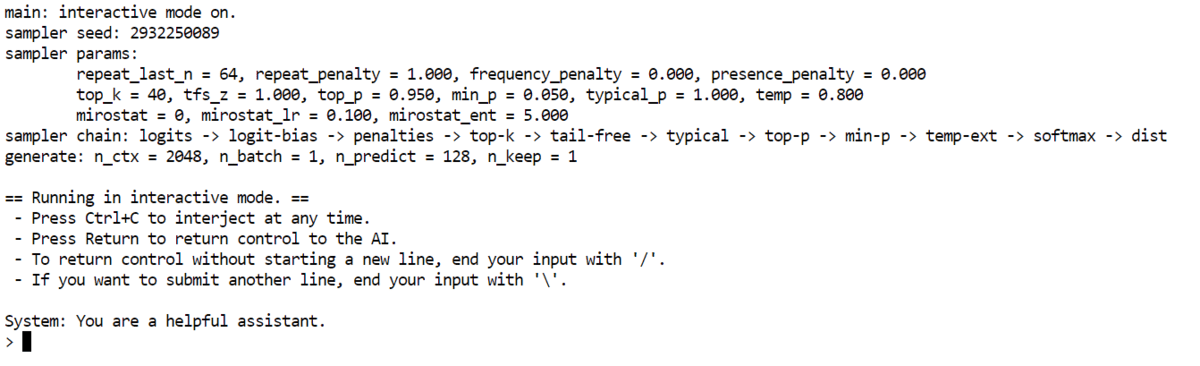
For example, we asked who the richest person in the world is. The model responded with a clear and readable response based on the knowledge frontier. Even though this is a miniature 2B parameter model running on the CPU, the output is consistent and usable.

At this point, you have a fully functioning local AI chat running on your computer.
# Step 5: Starting the local BitNet inference server
Now we will run BitNet as a local inference server. This allows you to access the model through a browser or connect it to other applications.
Run the following command:
python run_inference_server.py
  -m models/BitNet-b1.58-2B-4T/ggml-model-i2_s.gguf
 — host 0.0.0.0
 — port 8080
 -t 8
 -c 2048
 — temperature 0.7
What do these flags mean:
- -m loads the model file
- -host 0.0.0.0 makes the server available locally
- -port 8080 starts the server on port 8080
- -t 8 sets the number of CPU threads
- -c 2048 sets the context length
- -temperature 0.7 controls the creativity of the reaction
After starting, the server will be available on port 8080.

Open your browser and go to http://127.0.0.1:8080. You will see a straightforward web interface where you can chat with BitNet.
The chat interface is responsive and velvety, even though the model runs locally on the CPU. At this point you have a fully functioning local AI server running on your computer.

# Step 6: Connecting to the BitNet server using the OpenAI Python SDK
Now that your BitNet server is running locally, you can connect to it using the OpenAI Python SDK. This allows you to utilize the on-premises model just like the cloud API.
First install the OpenAI package:
Then create a straightforward Python script:
from openai import OpenAI

client = OpenAI(
   base_url="http://127.0.0.1:8080/v1",
   api_key="not-needed"  # many local servers ignore this
)

resp = client.chat.completions.create(
   model="bitnet1b",
   messages=[
       {"role": "system", "content": "You are a helpful assistant."},
       {"role": "user", "content": "Explain Neural Networks in simple terms."}
   ],
   temperature=0.7,
   max_tokens=200,
)

print(resp.choices[0].message.content)
Here's what's happening:
- base_url points to the local BitNet server
- api_key is required by the SDK, but is usually ignored by local servers
- model should match the model name exposed by your server
- Messages defines the system and user prompts
Exit:
Neural networks are a type of machine learning model inspired by the human brain. They are used to recognize patterns in data. Think of them as a group of neurons (like petite brain cells) that work together to solve a problem or make a prediction.
Imagine you are trying to recognize whether a photo is of a cat or a dog. The neural network would take the image as input and process it. Each neuron in the network would analyze a miniature part of the image, such as a whisker or tail. They would then pass this information on to other neurons, which would analyze the entire image.
By sharing and combining information, the network can decide whether the photo is of a cat or a dog.
To summarize, neural networks allow computers to learn from data by imitating how our brain works. They can recognize patterns and make decisions based on this recognition.
# Final remarks
What I like most about BitNet is the philosophy behind it. This is not just another quantized model. It's built from the ground up to be effective. This design choice really shows when you see how lightweight and responsive it is, even on modest hardware.
We started with a spotless Linux setup and installed the required development tools. We then cloned and built the bitnet.cpp file from the source and prepared the 2B GGUF model. Once everything was compiled, we ran BitNet in interactive chat mode directly on the CPU. We then took it a step further by running a local inference server and finally connected it to the OpenAI Python SDK.
Abid Ali Awan (@1abidaliawan) is a certified data science professional who loves building machine learning models. Currently, he focuses on creating content and writing technical blogs about machine learning and data science technologies. Abid holds a Master's degree in Technology Management and a Bachelor's degree in Telecommunications Engineering. His vision is to build an AI product using a graph neural network for students struggling with mental illness.