


Illustration by the author
Geospatial data analysis is a field that deals with the processing, visualization and analysis of a special type of data called geospatial data. Compared to normal data, we have tabular data with an additional column containing location information such as latitude and longitude.
There are two main types of data: vector data and raster data. Vector data is still a tabular data set, while raster data is more like images, such as satellite photos and aerial photos.
In this article, I will focus on raster data provided by Google Earth Engine, a cloud platform that provides a huge catalog of satellite image data. This kind of data can be easily mastered from within a Jupyter notebook using a lifesaving Python package called Geemap. Let’s start!
What is the Google Earth engine?
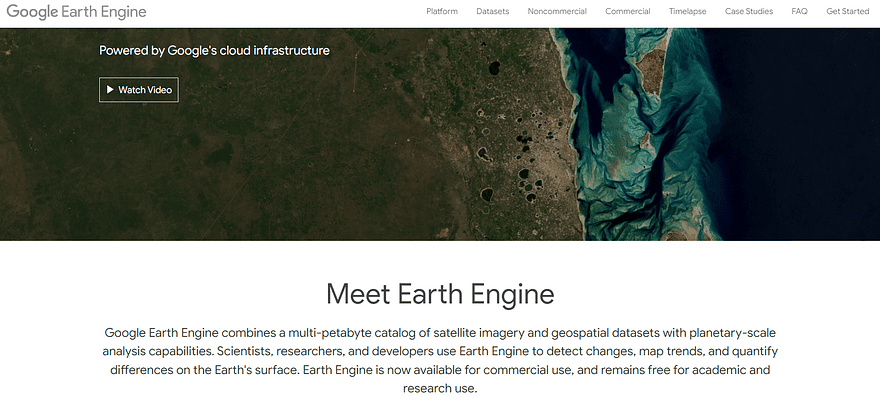
Screenshot by the author. Google Earth Engine home page.
Before we start using the Python library, we need to understand its potential Google Earth engine. This cloud-based platform, powered by the Google Cloud Platform, provides public and free geospatial datasets for academic, nonprofit, and business purposes.
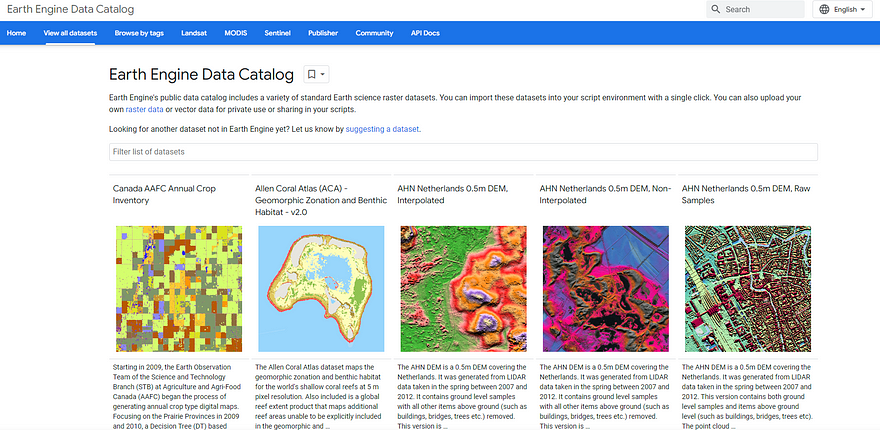
Screenshot by the author. Overview of the Earth Engine data catalog.
The beauty of this platform is that it provides a multi-petabyte catalog of raster and vector data stored on Earth Engine servers. This allows you to have a quick overview to combine. Additionally, it provides APIs to facilitate the analysis of raster datasets.
What is Geemap?
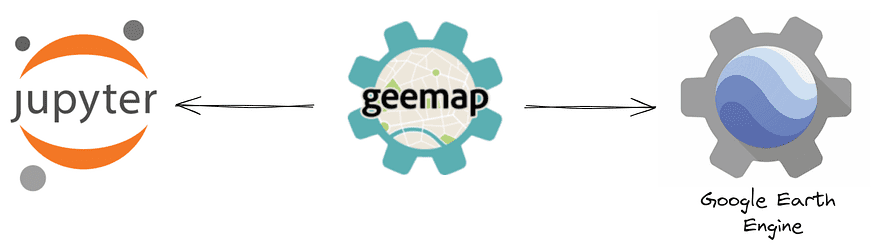
Illustration by the author. Geemap library.
Geographic map is a Python library that allows you to analyze and visualize huge amounts of geospatial data from Google Earth Engine.
Before this package, it was already possible to make compute requests via JavaScript and Python APIs, but the Python APIs were constrained in functionality and lacked documentation.
To fill this gap, Geemap was created, which allows users to access Google Earth Engine resources with a few lines of code. Geemap is built on Earthengine-api, ipyleaflet AND leaf.
To install the library, simply issue the following command:
I recommend you experiment with this amazing package in Google Colab to discover its full potential. Look at this free book written by Professor Dr. Qiusheng Wu for getting started with Geemap and Google Earth Engine.
How do I access Earth Engine?
First we need to import two Python libraries that will be used in the tutorial:
In addition to geemap, we imported an Earth Engine Python client library called ee.
This Python library can be used to authenticate with Earth Engine, but it may be faster by using the Geemap library directly:
You need to click on the URL returned by this line of code which will generate the authorization code. First, select a cloud project and then click the “GENERATE TOKEN” button.
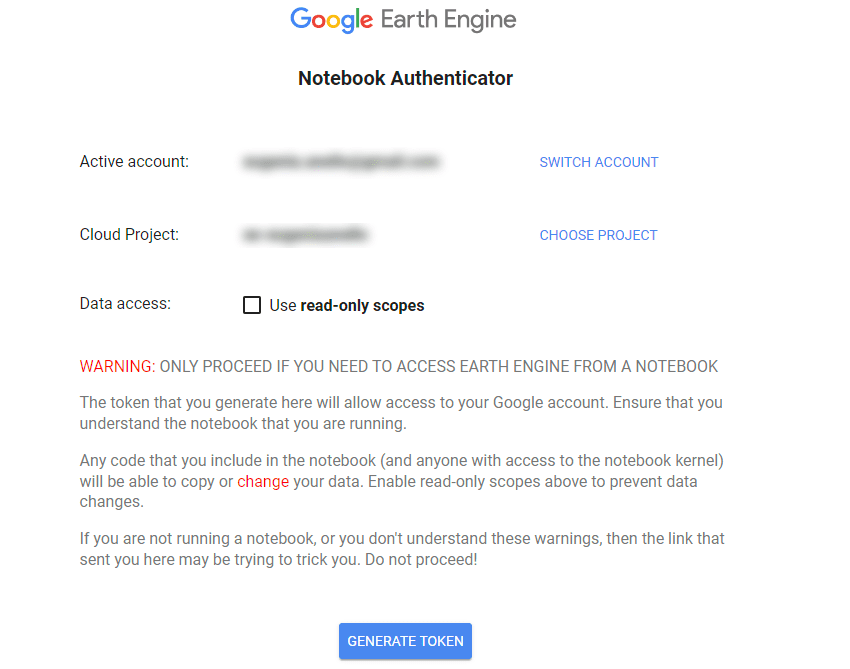
Screenshot by the author. Notebook authenticator.
It will then ask you to select an account. I recommend creating the same Google Colab account if you operate it.

Screenshot by the author. Select an account.
Then click the checkbox next to Select All and press the “Continue” button. In tiny, this step allows the Notebook Client to access the Earth Engine account.

Screenshot by the author. Allow the notebook client to access your Earth Engine account.
After this action, an authentication code will be generated which you can paste into the notebook cell.
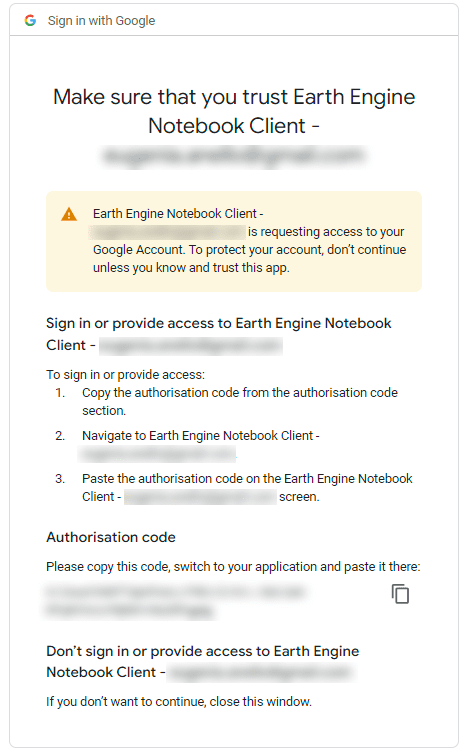
Screenshot by the author. Copy the authentication code.
After entering the verification code, you can finally create and visualize this interactive map:
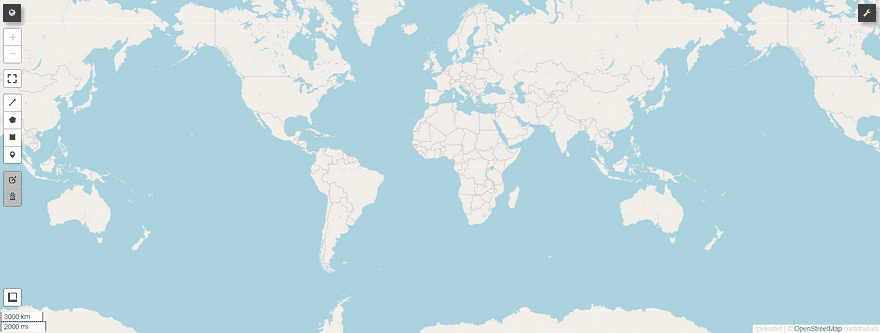
For now, you’re just observing the basemap on ipyleaflet, a Python package that allows you to visualize interactive maps in Jupyter Notebook.
Create interactive maps
Previously, we saw how to authenticate and visualize an interactive map with a single line of code. Now we can customize the default map by specifying the latitude and longitude of the center of gravity, the zoom level and the altitude. I chose Rome’s coordinates for the center to focus on the map of Europe.
m = geemap.Map(center=[41, 12], zoom=6, height=600)
m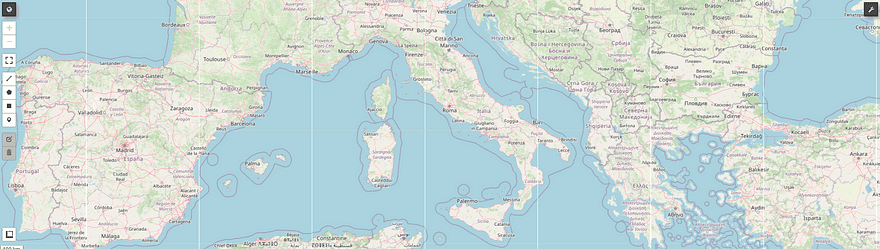
If we want to change the basemap, there are two possible ways. The first way is to write and run the following line of code:
m.add_basemap("ROADMAP")
m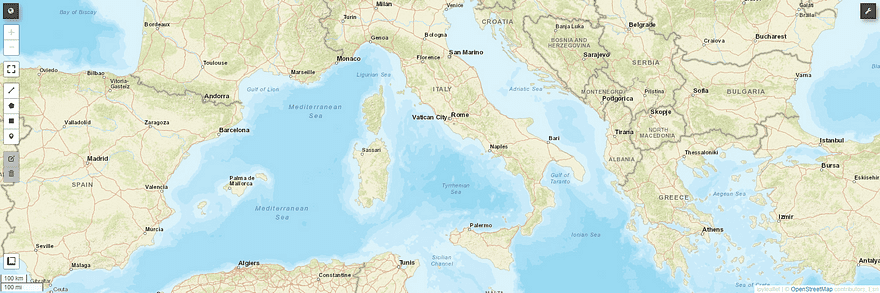
Alternatively, you can change the basemap manually by clicking the wrench icon located on the right.
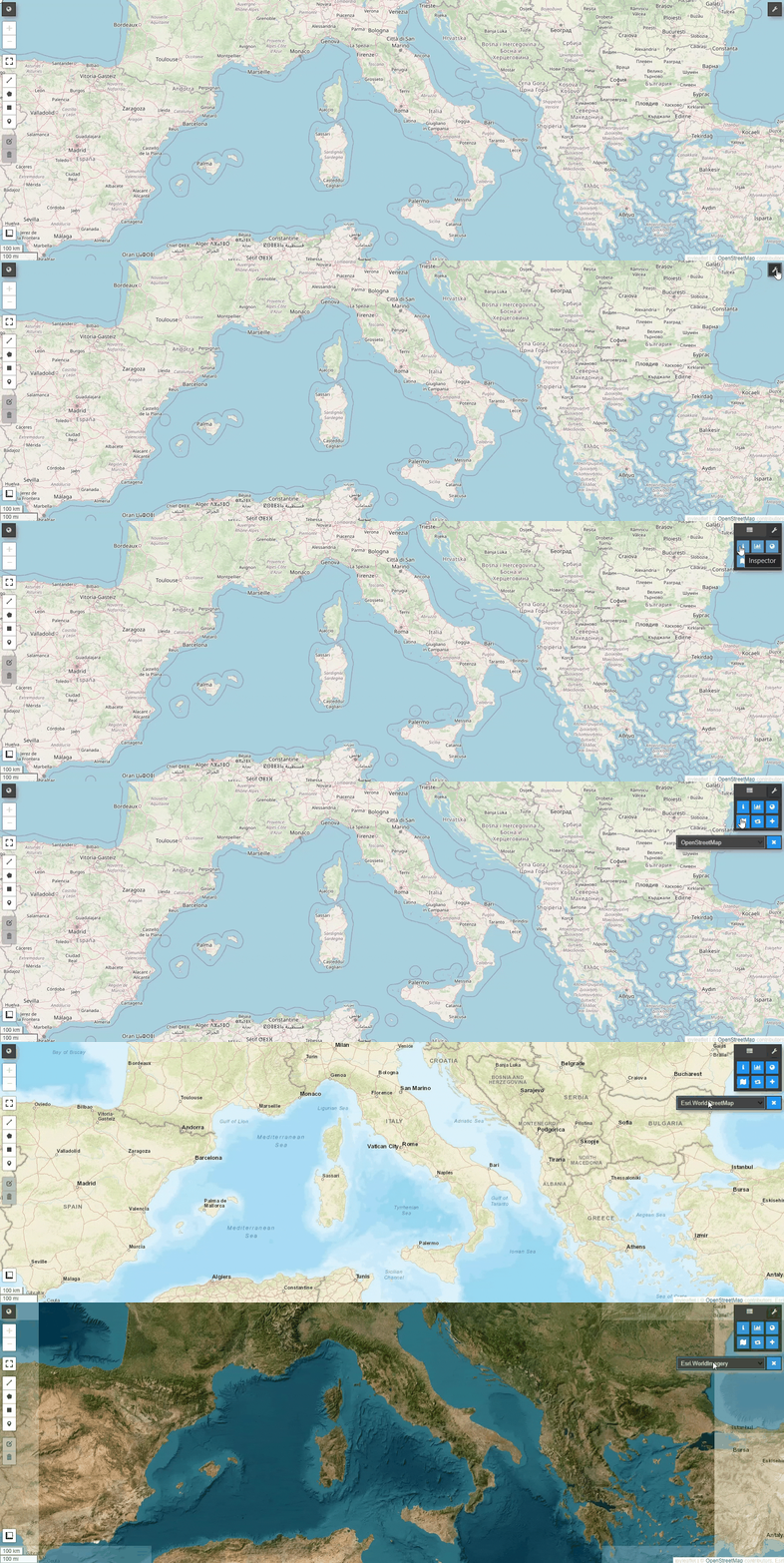
Additionally, we see a list of basemaps provided by Geemap:
basemaps = geemap.basemaps.keys()
for bm in basemaps:
   print(bm)
This is the result:
OpenStreetMap
Esri.WorldStreetMap
Esri.WorldImagery
Esri.WorldTopoMap
FWS NWI Wetlands
FWS NWI Wetlands Raster
NLCD 2021 CONUS Land Cover
NLCD 2019 CONUS Land Cover
...
Earth Engine data types
Before we show you Geemap’s full potential, it’s vital to understand the two main data types in Earth Engine. take a look at Google Earth Engine Documentation for more details.
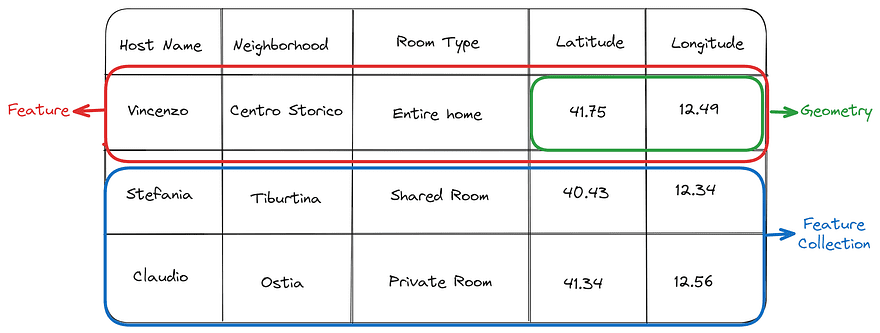
Illustration by the author. Example of vector data types: Geometry, Feature, and FeatureCollection.
When processing vector data, we generally operate three types of data:
- Geometry stores the coordinates needed to draw vector data on a map. Earth Engine supports three main geometry types: Point, LineString, and Polygon.
- Function is essentially a poem that combines geometry and non-geographic attributes. It is very similar to the GeoSeries class in GeoPandas.
- Feature collection is a tabular data structure that contains a set of functions. FeatureCollection and GeoDataFrame are almost identical conceptually.
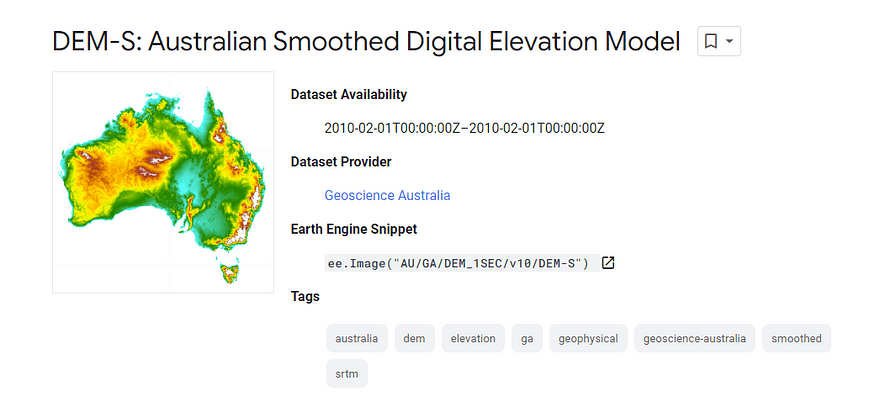
Screenshot by the author. Example of the Image data type. Showing the Australian smoothed digital elevation model (DEM-S)
In the world of raster data, we focus on Picture objects. Google Earth Engine images are composed of one or more brands, with each band having a specific name, estimated minimum and maximum, and a description.
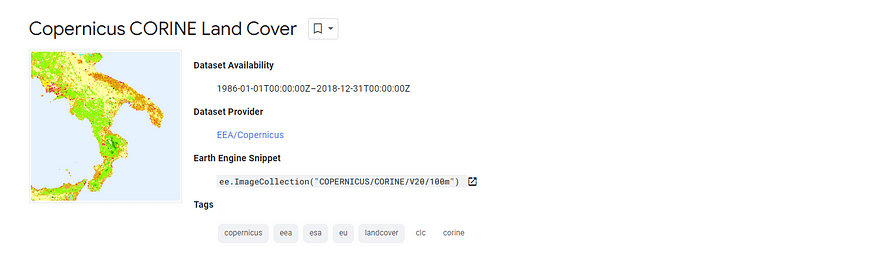
Screenshot by the author. Coverage of the Copernicus CORINE program area.
We visualize satellite images showing the land cover map of Europe. This dataset shows changes between 1986 and 2018.
First we load the image using ee.Image and then select the “landcover” band. Finally, let’s visualize the image by adding the loaded dataset to the map as a layer using Map.addLayer.
Map = geemap.Map()
dataset = ee.Image('COPERNICUS/CORINE/V20/100m/2012')
landCover = dataset.select('landcover')
Map.setCenter(16.436, 39.825, 6)
Map.addLayer(landCover, {}, 'Land Cover')
Map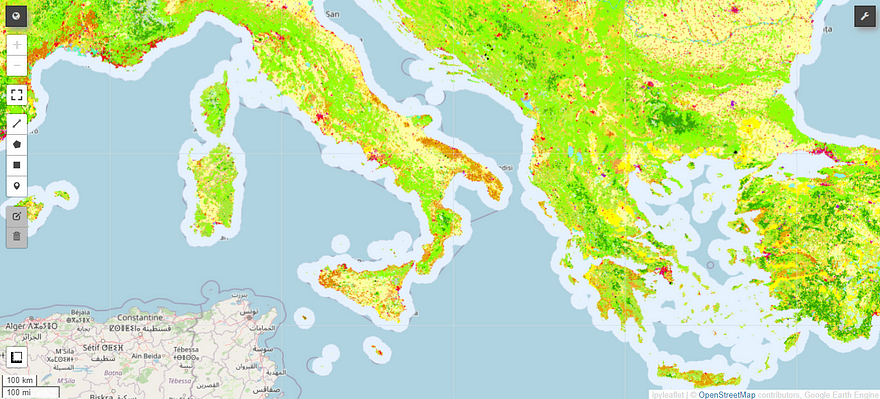
Screenshot by the author.
Similarly, we can do the same to load and visualize satellite images showing a land cover map of Europe. This dataset shows changes between 1986 and 2018.
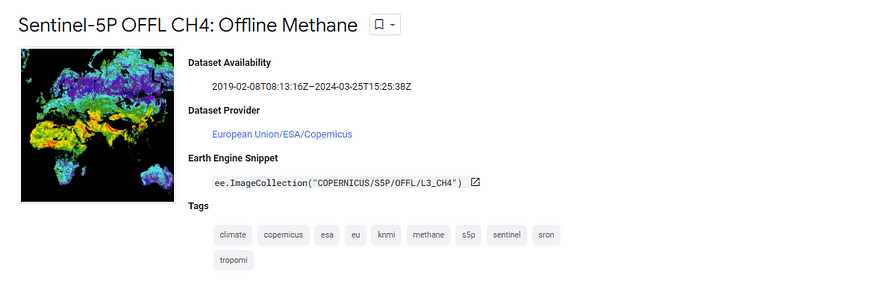
Screenshot by the author. High-resolution offline images showing methane concentrations.
To visualize the Earth Engine ImageCollection, the lines of code are similar except for ee.ImageCollection.
Map = geemap.Map()
collection = ee.ImageCollection('COPERNICUS/S5P/OFFL/L3_CH4').select('CH4_column_volume_mixing_ratio_dry_air').filterDate('2019-06-01', '2019-07-16')
band_viz = {
 'min': 1750,
 'max': 1900,
 'palette': ['black', 'blue', 'purple', 'cyan', 'green', 'yellow', 'red']
}

Map.addLayer(collection.mean(), band_viz, 'S5P CH4')
Map.setCenter(0.0, 0.0, 2)
Map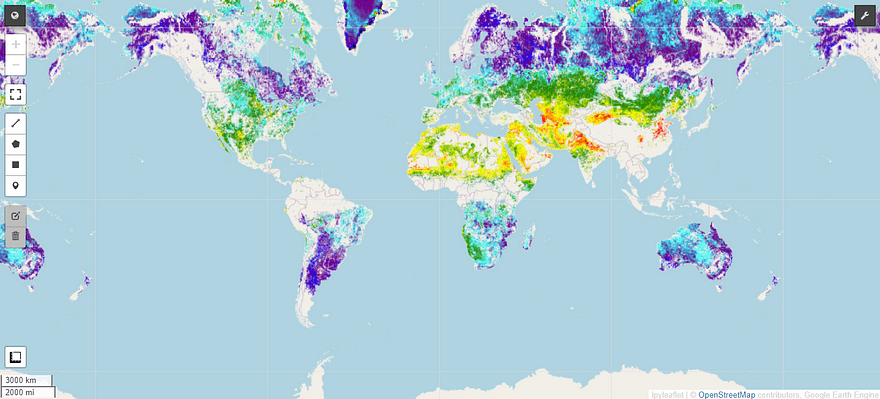
Screenshot by the author.
It’s great! On this map we see the distribution of methane, one of the most vital factors causing the greenhouse effect, on the globe.
Final thoughts
This was an introductory guide that can assist you work with Google Earth Engine data using Python. Geemap is the most complete Python library for visualizing and analyzing this type of data.
If you want to dive deeper into this package, you can check out the resources I suggested below.
The code can be found Here. I hope the article was useful. Have a nice day!
Useful resources:
Eugenia Anello he is currently a researcher at the Department of Information Engineering, University of Padua, Italy. Her research project focuses on continuous learning combined with anomaly detection.